
Goal
This guide shows how to upload and download files to your application using sftp and rsync.
Assumptions
To complete this, you will need:
- A working application setup on a Platform.sh project
- The Platform.sh CLI tool installed
- Your
sshkey loaded in your ssh agent and configured in the Platform.sh dashboard -
rsyncinstalled on your system - or
scpinstalled on your system - or an
sftpGUI client like FileZilla
Problems
Platform.sh provides upload and download mechanisms through the CLI but it can be handy to use native tools instead.
Steps
-
Add a mount point to your application
By default, all files deployed to Platform.sh through
gitare read-only. Only the folders defined asmountsare writeable.Open
./.platform.app.yamland add amount:mounts: 'web/uploads': source: local source_path: uploadsPlease refer to the mounts documentation if needed.
Push your configuration change:
git add .platform.app.yaml git commit -m "Add mount" git push platform master -
Check the mount point is writeable
platform ssh
web@<environment id>:~$ touch web/uploads/test.txt
The command above shouldn’t trigger any error.
-
Get the environment
sshendpointBoth
rsyncandsftpprotocols usesshas the transfer layer. Each Platform.sh environment inside a project has its ownsshendpoint.If you have the Platform.sh CLI installed, you can run
platform ssh --pipeto get the endpoint.If not, log into your project dashboard and click on the
SSHbutton for the environment you want to get the endpoint: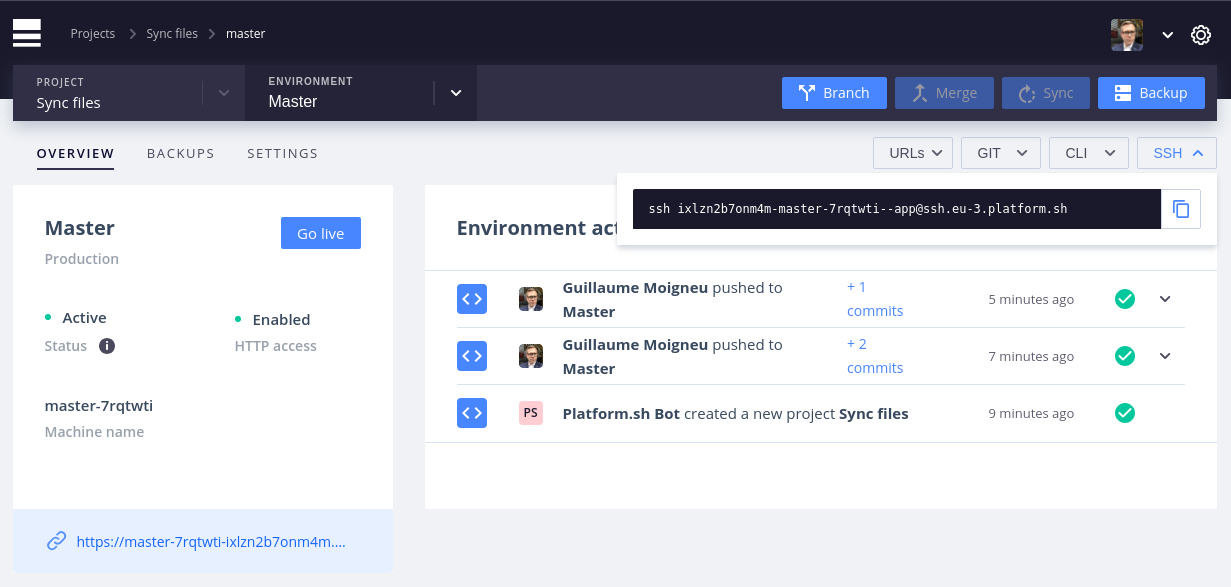
Our endpoint is
<project id>-master-7rqtwti--app@ssh.<region>.platform.sh
Note: All the next commands will be using platform ssh --pipe as the endpoint. Feel free to replace with the full connection string if needed.
-
Create test files
Let’s create some files to play with:
mkdir -p web/uploads
touch web/uploads/test{0001..0010}.txt
rsync
-
Upload a file or a directory
To upload a directory, make sure you don’t specify the source folder (
uploadsin this case) in the destination. Take a look atman rsyncto view all available options.rsync -avz web/uploads "$(platform ssh --pipe)":web/The log should list all files that were uploaded:
sending incremental file list
uploads/
uploads/test0001.txt
...
uploads/test0010.txt

sent 603 bytes  received 210 bytes  325.20 bytes/sec
total size is 0  speedup is 0.00
We could have synced only the files with the following command:
rsync -avz web/uploads/* rsync -avz web/uploads "$(platform ssh --pipe)":web/uploads/As rsync is transferring only the differences between the source and destination, relaunching the same command will end up in an empty transfer.
-
Download a file or a directory
Remove your local files:
rm web/uploads/*We can now download them from Platform.sh:
rsync -avz "$(platform ssh --pipe)":web/uploads web/You can see in the output that all files are transferred back to our host.
scp
Remove the files on Platform.sh if you have followed the rsync steps:
platform ssh "rm web/uploads/*"
-
Upload a file or a directory
To upload a file, specify the full path:
scp web/uploads/test0001.txt "$(platform ssh --pipe)":web/uploadsTo upload a directory, add the
-rargument:scp -r web/uploads "$(platform ssh --pipe)":web/The output should list the 10 files being transferred. Note that
scpis not using incremental transfer. All 10 files are being transferred even if they already exist at the destination. -
Download a file or a directory
Remove a local file first:
rm web/uploads/test0001.txtTo download a file:
scp "$(platform ssh --pipe)":web/uploads/test0001.txt web/uploads/To download a directory:
scp -r "$(platform ssh --pipe)":web/uploads web/
sftp
Remove the files on Platform.sh if you have followed the previous steps:
platform ssh "rm web/uploads/*"
-
Configure your client
Add a new bookmark to your client with the following configuration (based on our endpoint):
hostname: ssh.eu-3.platform.sh
port: 22
protocol: SFTP
user: <project id>-master-7rqtwti--app
key/identity file: `/path/to/your/key
Filezilla needs to have a
.pemkey file to list it.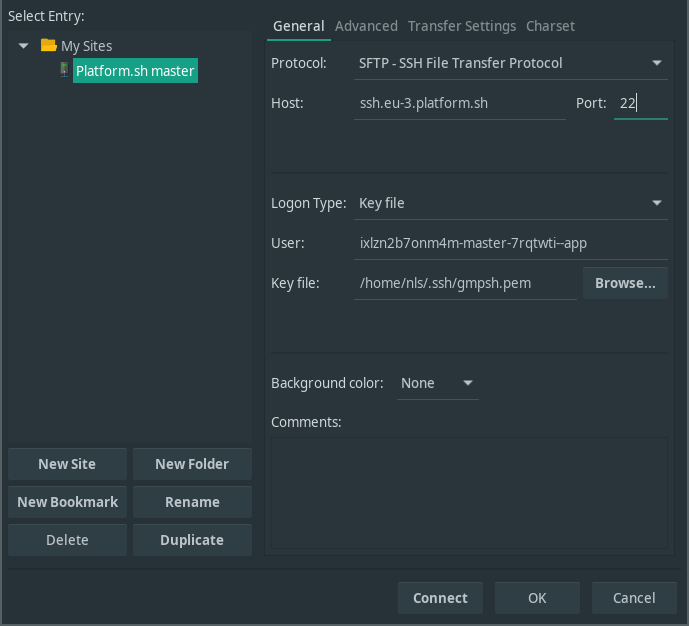
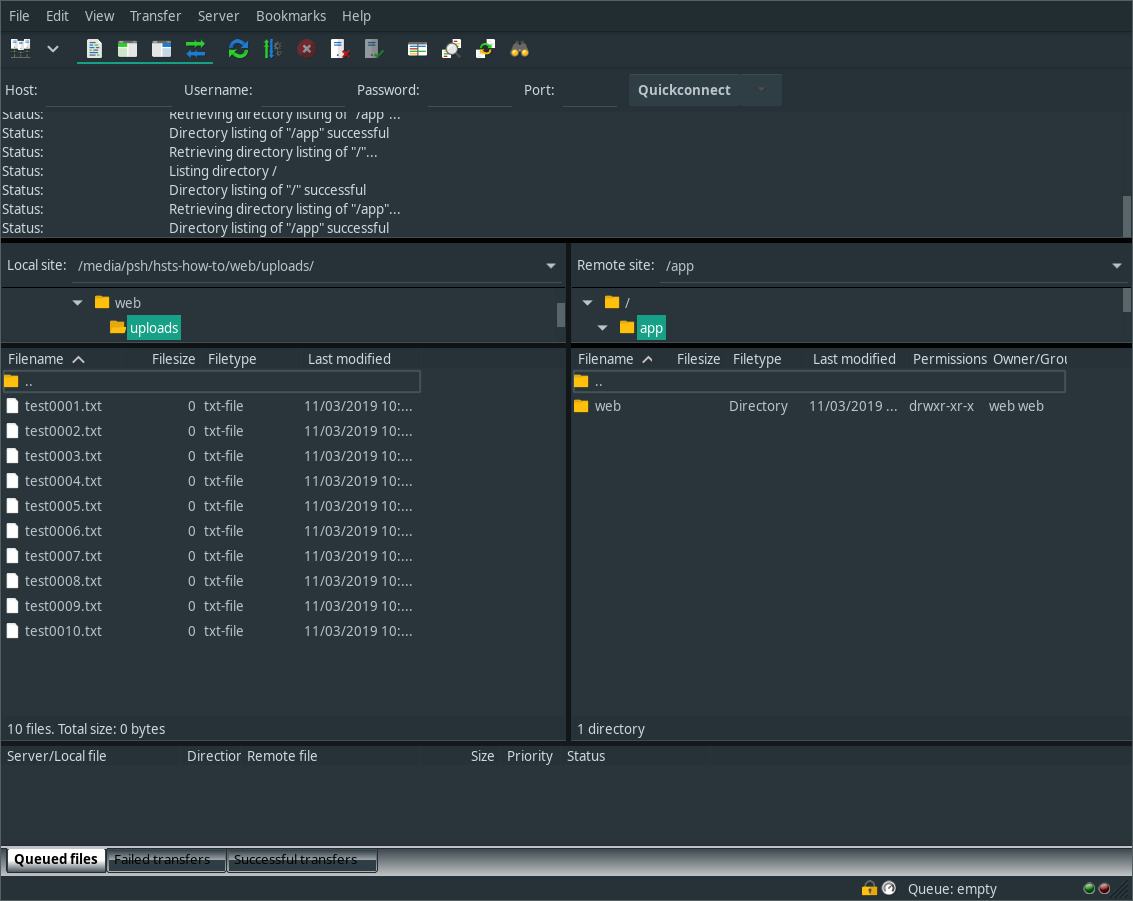
Connect to the site. You should be presented with the content of the root folder of your app.
-
Upload a file or a directory
Drag and drop files and folders from your computer to the
mount: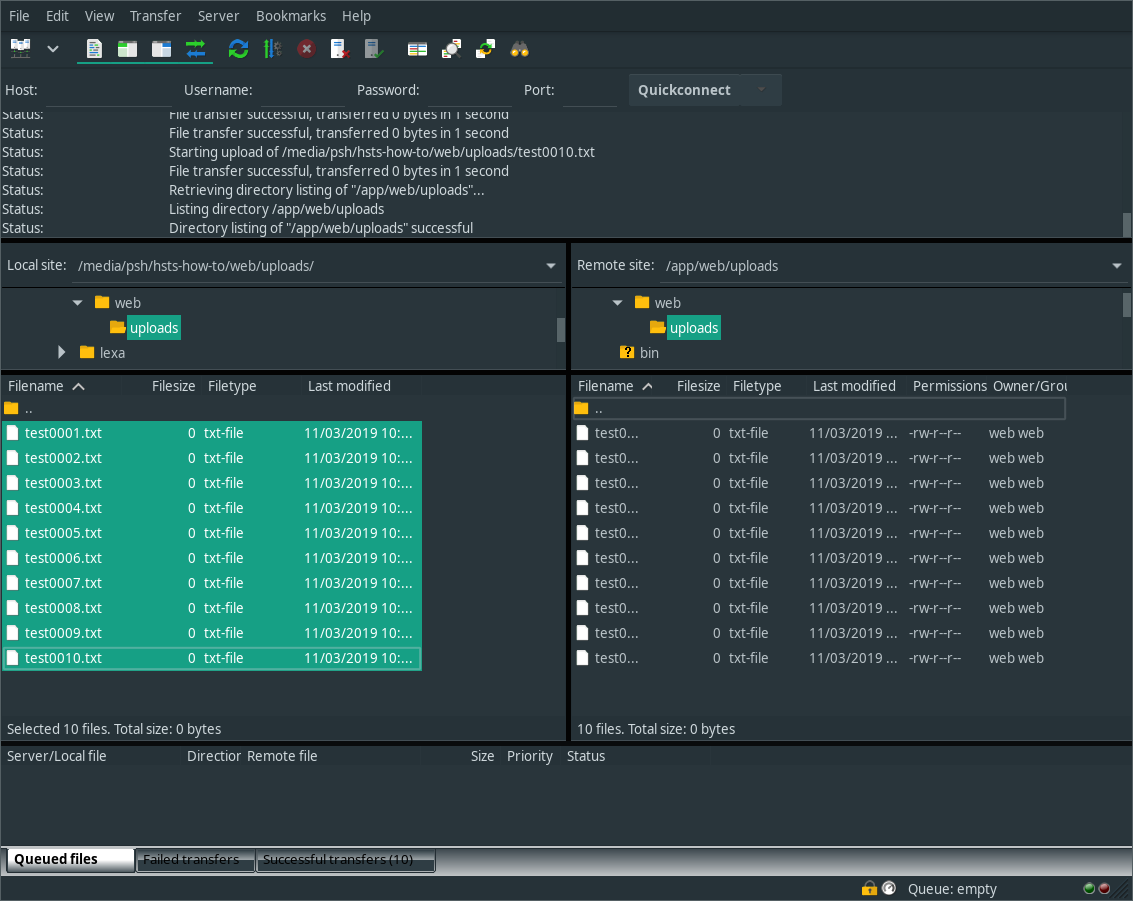
-
Download a file or a directory
Drag and drop files and folders from the
mountto your computer. Easy enough.
Conclusion
Transferring and managing files on your Platform.sh environments can be done using native tools that use ssh, scp, rsync, or sftp.